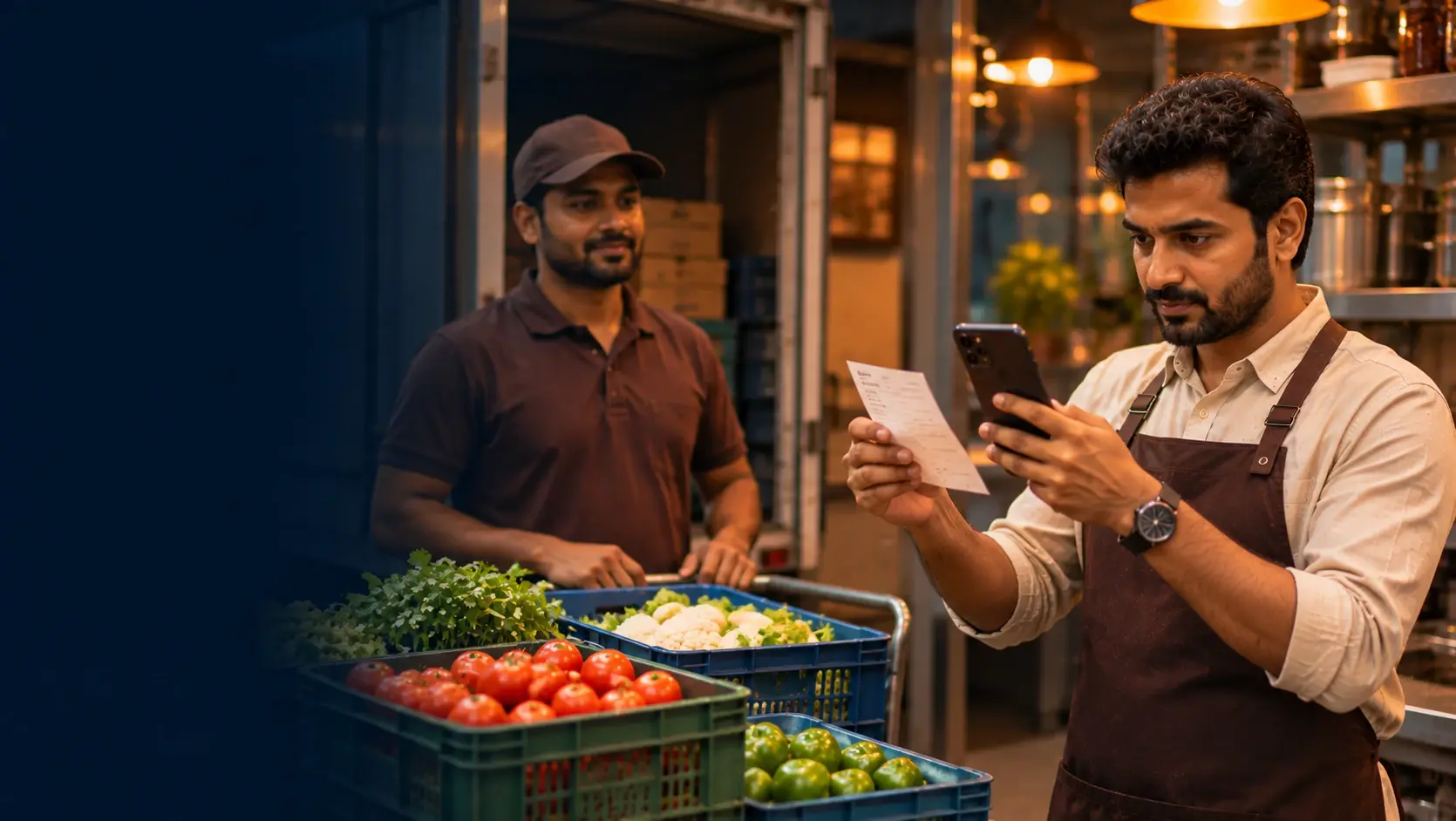
Photograph the bill. Check it. Book it.
Photograph a supplier bill and AI fills in a draft purchase bill for you to check. Optional AI features, switched on after launch.
- Reads the whole bill
- Matched to your stock
- Optional, on or off for each brand
Take a photo or a PDF of a supplier bill.
How it works
You add the bill
Take a photo, or upload a photo or a PDF.
AI reads it
It fills a draft purchase bill and matches the lines.
You check and confirm
The bill is booked only now.
Optional, on or off for each brand
What it uses
A photo or a PDF of a supplier bill or tax invoice
You stay in control
Nothing is booked until you confirm. Each field shows how sure the AI is, so you know what to check.
Who decides
You confirm. Nothing is booked before that
- AI-assisted
- Optional
- Planned for launch, February 2027
- Who decides: You confirm. Nothing is booked before that
- Inputs: A photo or a PDF of a supplier bill or tax invoice
What it does.
Reads the whole bill
Supplier, bill number, date, total, GST and every line are filled in for you.
Matched to your stock
Each line is matched to one of your stock items. The supplier is matched too, for example by GSTIN.
Shows how sure it is
Each field shows how sure the AI is. A field it is not sure of is marked "Check this".
You confirm
You check each field against the bill beside it. Only then is the bill booked.
Worked example (sample data).
One made-up restaurant, to show how Supplier bill scan works from start to finish.
Example, not real data
A sample kitchen receives vegetables from a sample supplier.
- Input
- The chef photographs the supplier bill at the delivery door.
- Output
- AI fills in a draft purchase bill and matches each line to a stock item. Each field shows how sure AI is. One unclear line is marked "Check this".
- What you check or change
- He checks each field against the bill beside it, corrects the marked line, and confirms.
- If it is wrong
- If AI reads a figure wrong, he sees it when he compares and corrects it. The bill is booked only when he confirms. If the bill has an e-invoice QR code, that is read first, without AI.
What the scan fills in.
A draft purchase bill, with the fields the page lists. Sample data.
Sample data, not real
| Field | Sample value | Marked |
|---|---|---|
| Supplier | Sample Vegetables Co. | Matched to your supplier |
| Bill number | SB-1042 | No mark |
| Date | 14 November | No mark |
| Total | ₹8,420.00 | No mark |
| GST | ₹401.00 | No mark |
| Lines | 3 lines, each matched to a stock item | Check this |
A field the AI is not sure of is marked "Check this". The bill is booked only when you confirm.
Product screens
The screens you and your team will use for this.
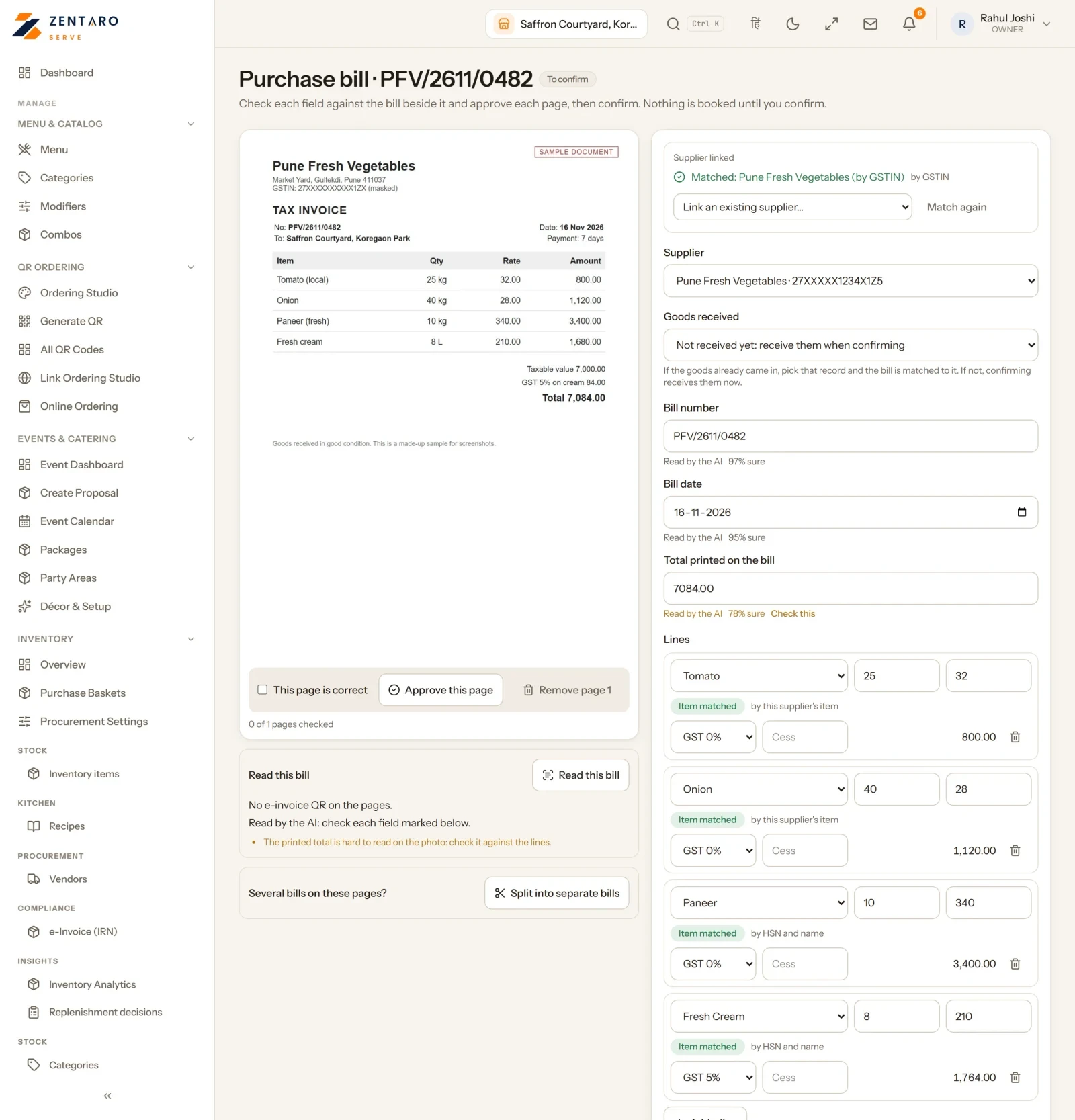
Example screen with sample data
Who it helps.
Stop typing supplier bills by hand.
Check each figure against the bill on the same screen.
You stay in control. Nothing is booked until you confirm. Each field shows how sure the AI is, so you know what to check.
Good to know
- This AI feature is optional. You switch it on or off for each brand.
- Each AI task uses credits from your balance.
Common questions.
What can I scan?
A photo or a PDF of a supplier bill or a tax invoice.
Is the bill booked straight away?
No. AI fills in a draft. You check every field, then you confirm.
What if one photo has several bills?
You can split it into one draft for each bill.
Does every bill use AI?
No. If the bill has an e-invoice QR code, that is read first, without AI.
More AI in Zentaro Serve.
Part of AI tools for restaurants See also Ask your data. Daily briefing. Leak watchdog explanations. Menu import.
Tell us about your restaurant.
Zentaro Serve launches in February 2027. Tell us what you run today and we will get in touch.
Last updated: