Staff access control: everyone sees only their work
Restaurant staff access control decides what each person on your team can see and do. In Zentaro Serve you give each person a role. A waiter sees tables and orders. A cashier takes payments. A manager runs one outlet. It is role based access for restaurant staff, and you set it.
- Each role sees only what it needs
- Refunds need a second person to approve
- Above your limit, a manager decides
- A record of every change
Money leaks when everyone can do everything.
Most losses in a restaurant are small and quiet. Each one below has a limit that you set.
Wrong voids
A void can hide a sale. Each void needs a reason. Above your limit it needs a manager PIN.
Big discounts
You set a discount limit for each role. Above it, a manager decides.
Refunds
A refund can need a second person to approve it. You choose who can refund.
Cash that goes missing
At close each cashier counts their drawer. The shift breakdown shows any gap and whose shift it was.
Sales figures on every screen
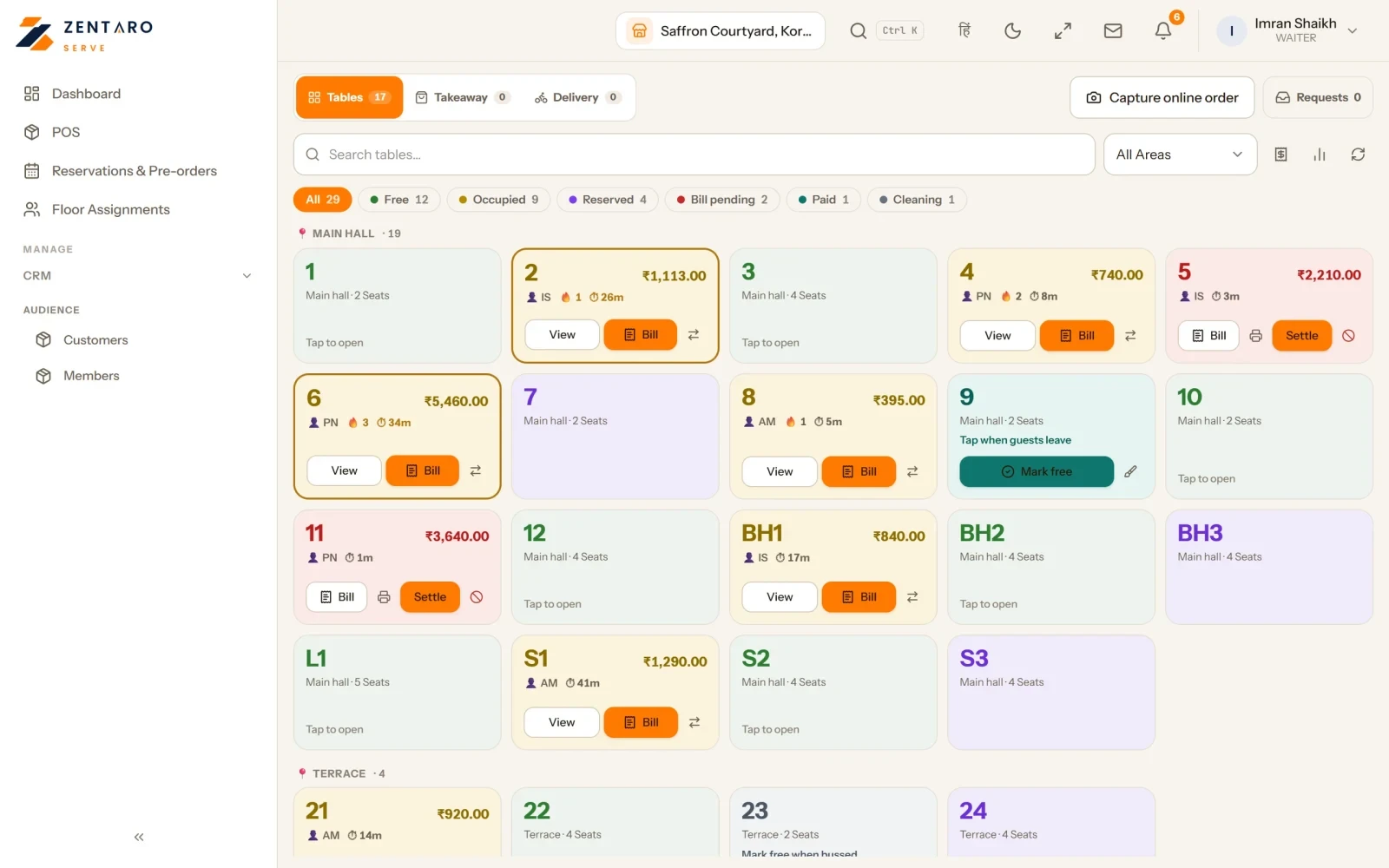
A waiter sees tables, orders and bills. Not your reports, costs or settings.
Prices that slip
Changing a selling price needs permission. Staff cannot sell below the lowest price you set.
What each person sees, and what they do not.
Each person signs in with their own login. Their role decides the screens they get.
| Role | What they see and do | What stays closed |
|---|---|---|
| Waiter or captain | Tables, orders and bills. They can take the order at the table, on a phone or tablet. | Your reports, costs or settings. |
| Cashier | Bills, payments and their own cash drawer. They work inside the limits of their role. | A discount above the limit. Their own refund. |
| Kitchen | The kitchen display. Kitchen roles can view and bump orders. | Taking payment. |
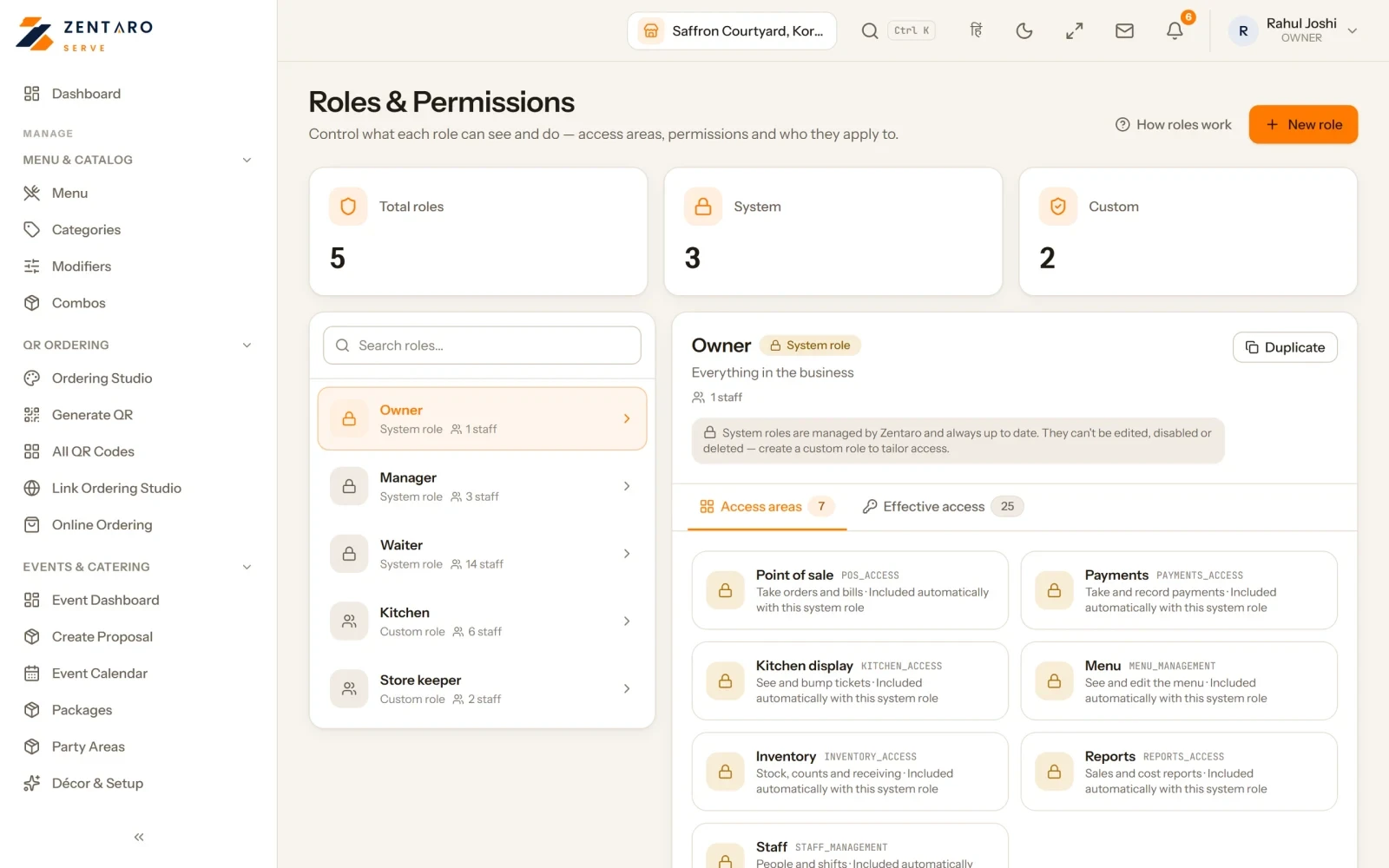
| Store keeper | Stock, counts and receiving. This is a role you make yourself. | Anything you leave out of the role. |
| Manager | Their own outlet: the dashboard, kitchen, shifts and menu. They approve with a PIN and close the shift. | Your company settings. A sister outlet. |
| Region manager | The outlets in their own regions. | Other regions. |
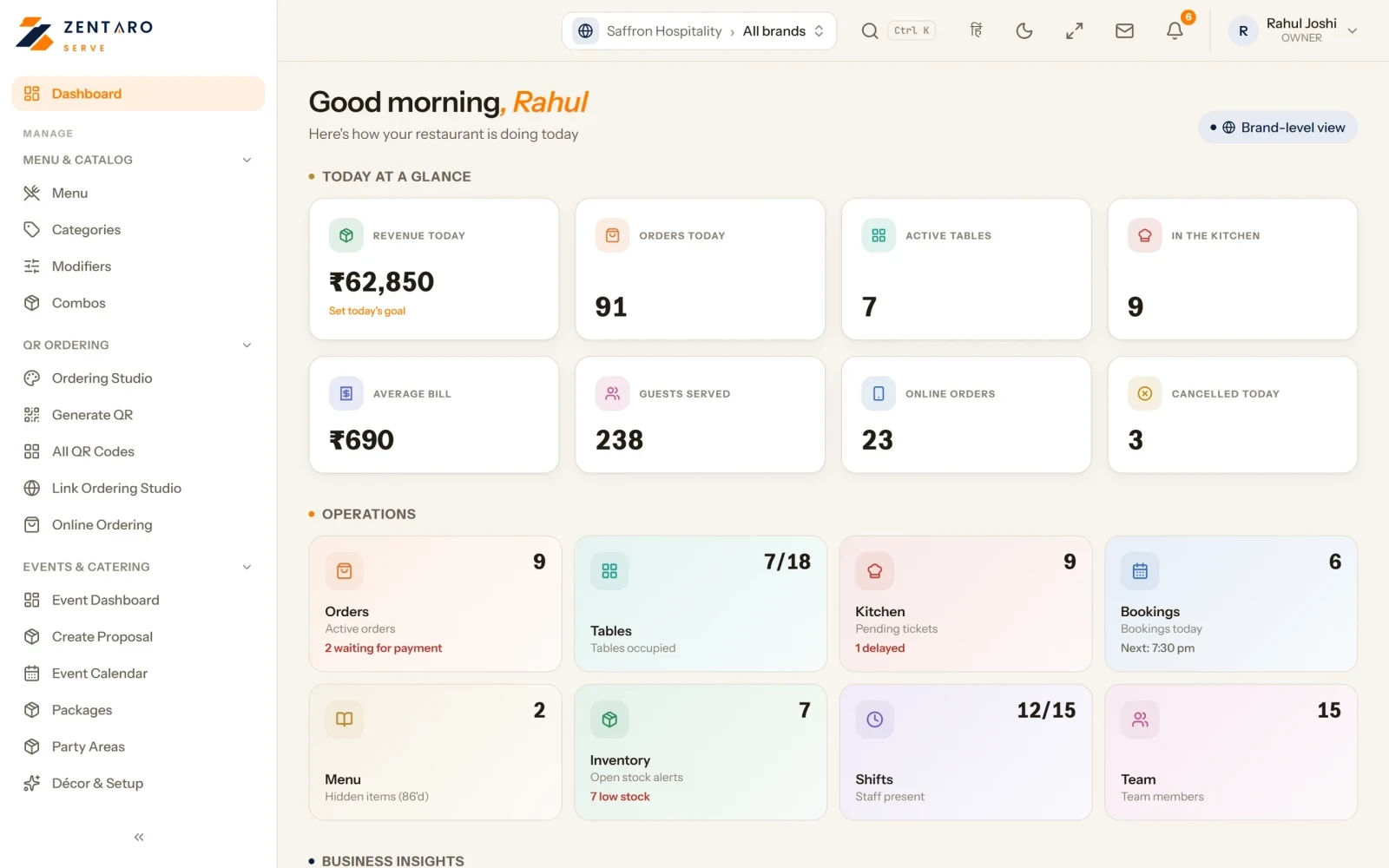
| Owner | Everything for the brand. Voids, refunds and discounts by person. | A screen to change the audit record. |
Need a different role? Copy a role that is close, give it a name and change what it can do. The roles that come with Zentaro Serve stay as they are.
Some actions need a second person.
Three actions can quietly take value out of a restaurant. In Zentaro Serve these can need a second person to approve. You choose who can refund or void, and the limit.
Want the detail on approvals, sign-in and records? See Security and control →
Each manager sees only their part.
When you add a person, you choose where they work: one outlet, a region or the whole brand.
One outlet
A manager who is given one outlet is set up to see that outlet, not a sister outlet.
A region
A region manager sees and changes only their own regions.
The whole brand
The owner sees everything for the brand.
Add a person. Pick a role. Done.
You change access yourself, from the staff list. You decide what each role can do on the Roles and Permissions page.
- 1
One staff list
Everyone who works for you is in one list, active and inactive. Search by name, phone or role.
- 2
A role and a place
Give each person a role. Choose whether they reach one outlet, a region or the whole brand.
- 3
Invite by e-mail
A person who already has an account gets an invitation. It stays off until they accept it.
- 4
Their own PIN
Nobody sets or sees another person's PIN. You can reset it, and the person sets their own.
Extra access for a short job. A record of every change.
Temporary access
- Give one person one extra permission beyond their role, from a short approved list.
- Say where it applies, and set an end date if you want one.
- Each grant is recorded.
A record of who did what
- Changes are listed newest first: who did it, their role, what they did and to what.
- Each row shows the reason, and the old and new value.
- Nobody in the restaurant can change the record. Not even the owner.
When someone leaves
- When a person leaves your team, their access leaves with them.
- A login that is switched off stops working everywhere.
- Sessions expire, so an old sign-in does not stay open.
Product screens
The screens you and your team will use for this.
Example screens with sample data
The problem you know
Why open access at the till costs you money
- A void takes a sale off the books and nobody asks why.
- A cashier gives a big discount to a friend, and you find out next week.
- Staff open sales and cost figures that they do not need for their work.
How do you set POS user permissions for your staff?
- Add each person to your staff list. Each person signs in with their own login.
- Give each person a role, such as waiter, cashier or manager.
- Choose where they work: one outlet, a region or the whole brand.
- Set the limits for each role: how big a discount it can give, who can void, who can refund.
- When a job changes, change the role. You decide what each role can do.
What you get with roles and permissions
- Roles and staff permissions, with temporary access for a short job.
- Your own roles. Copy a role that is close, then change what it can do.
- A manager PIN for voids and large discounts.
- Audit logs and a list of sessions, so you can see who did what.
- Two-step sign-in with a code from an authenticator app.
What it is not
- The software does not make people honest. It makes problems easy to see and hard to hide.
- Each staff member sees only what their access allows.
Who uses it in your restaurant
Who it is for
- Owner: decides who sees what.
- Manager: runs their outlet and approves with a PIN.
- Waiter, cashier and kitchen: see only their own work.
Talk to us. Talk to us
Common questions.
What is restaurant staff access control?
It is how you decide what each person on your team can see and do. Each person gets a role, and the role sets their screens and their limits.
Can a waiter see my sales reports?
No. A waiter sees tables, orders and bills. Not your reports, costs or settings.
Can I make my own roles?
Yes. Copy a role that is close, give it a name and change what it can do. The roles that come with Zentaro Serve stay as they are.
Can a manager of one outlet see my other outlets?
A manager who is given one outlet is set up to see that outlet, not a sister outlet. A region manager is set up for their own regions.
Can I give someone extra access for a short time?
Yes. Give one person one extra permission beyond their role, from a short approved list. Say where it applies, and set an end date if you want one. Each grant is recorded.
What happens when a staff member leaves?
When a person leaves your team, their access leaves with them. A login that is switched off stops working everywhere.
Who can approve a void or a refund?
Above your limit, a void needs a manager PIN. A refund can need a second person to approve it. You choose who can refund or void.
Tell us about your restaurant.
Zentaro Serve launches in 2027. Tell us what you run today and we will get in touch.
Last updated: